Welcome to AuraSim Platform
AuraSim is a comprehensive cloud-based robotics simulation and development platform. It provides a unified workspace for robotics simulation, development, and runtime operations through cloud-hosted applications streamed directly to your desktop.
What is AuraSim?
AuraSim is a cloud-native robotics platform that combines:
- Cloud-Hosted Isaac Sim: NVIDIA Isaac Sim sessions streamed to your device
- Virtual Development Environment: Ubuntu-based RobotVM with pre-installed tools
- Unified File Management: Shared storage for assets between applications
- Seamless Cloud Computing: No local hardware requirements for high-fidelity simulation
Platform Applications
🚀 AuraSim (Isaac Sim Streaming)
- Cloud-hosted NVIDIA Isaac Sim sessions
- High-fidelity robotics simulation
- Streamed directly to your desktop
- No local GPU requirements
🖥️ RobotVM (Virtual Development Environment)
- Ubuntu 22.04 LTS with pre-installed tools
- VS Code, ROS2 Humble, CUDA toolkit
- Full development environment in the cloud
- Persistent storage across sessions
� FileBrowser (Shared Storage)
- Unified file management interface
- Upload/download simulation assets
- Shared between AuraSim and RobotVM
- Persistent data storage
🎯 Cloud Computing Benefits
- No hardware setup required
- Auto-scaling GPU resources
- Collaborative development
- Cross-platform compatibility
System Requirements
Before using AuraSim, ensure your system meets these requirements:
Minimum Requirements
| Component | Specification | Recommended |
|---|---|---|
| OS | Windows 10+, macOS 13+, Ubuntu 20.04+ | Latest stable |
| Network | 50 Mbps down / <80 ms latency | 100+ Mbps / <10 ms latency |
| GPU (local) | Not required for streaming | Local GPU improves UI smoothness |
| Browser | Chrome / Edge / Firefox (latest) | Chrome stable |
Performance Tips
- Prefer wired or 5 GHz Wi-Fi connection
- Lower resolution if latency >150 ms
- Avoid parallel high-bandwidth sessions on same network
Getting Started
Ready to start with AuraSim? Follow these simple steps:
Step 1: Download the Desktop Client
- Navigate to the download portal
- Select the file based on your operating system
- Download and run the installer
Step 2: Launch and Login
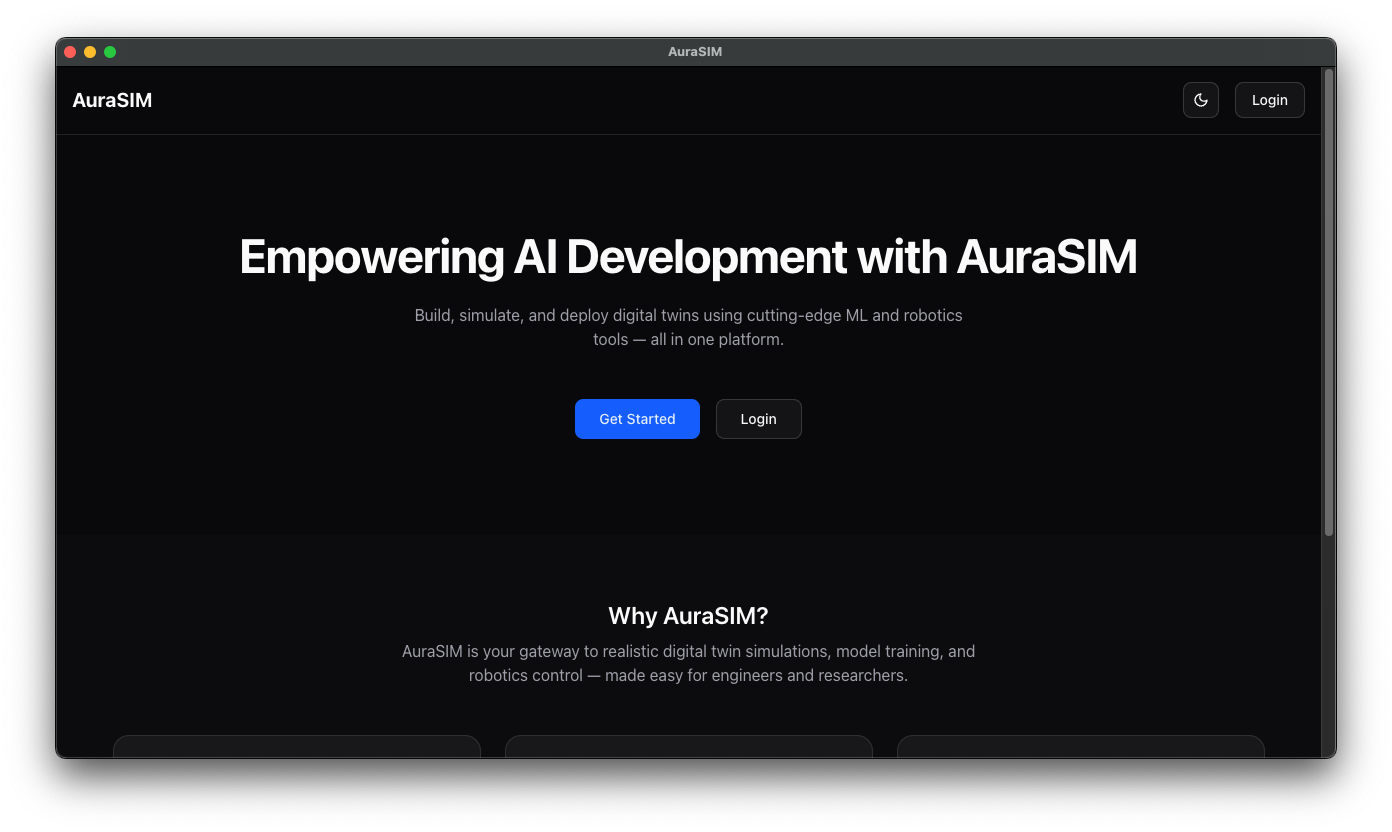
- Open the installed AuraSim desktop application
- Click "Login" or "Get Started" from the landing page
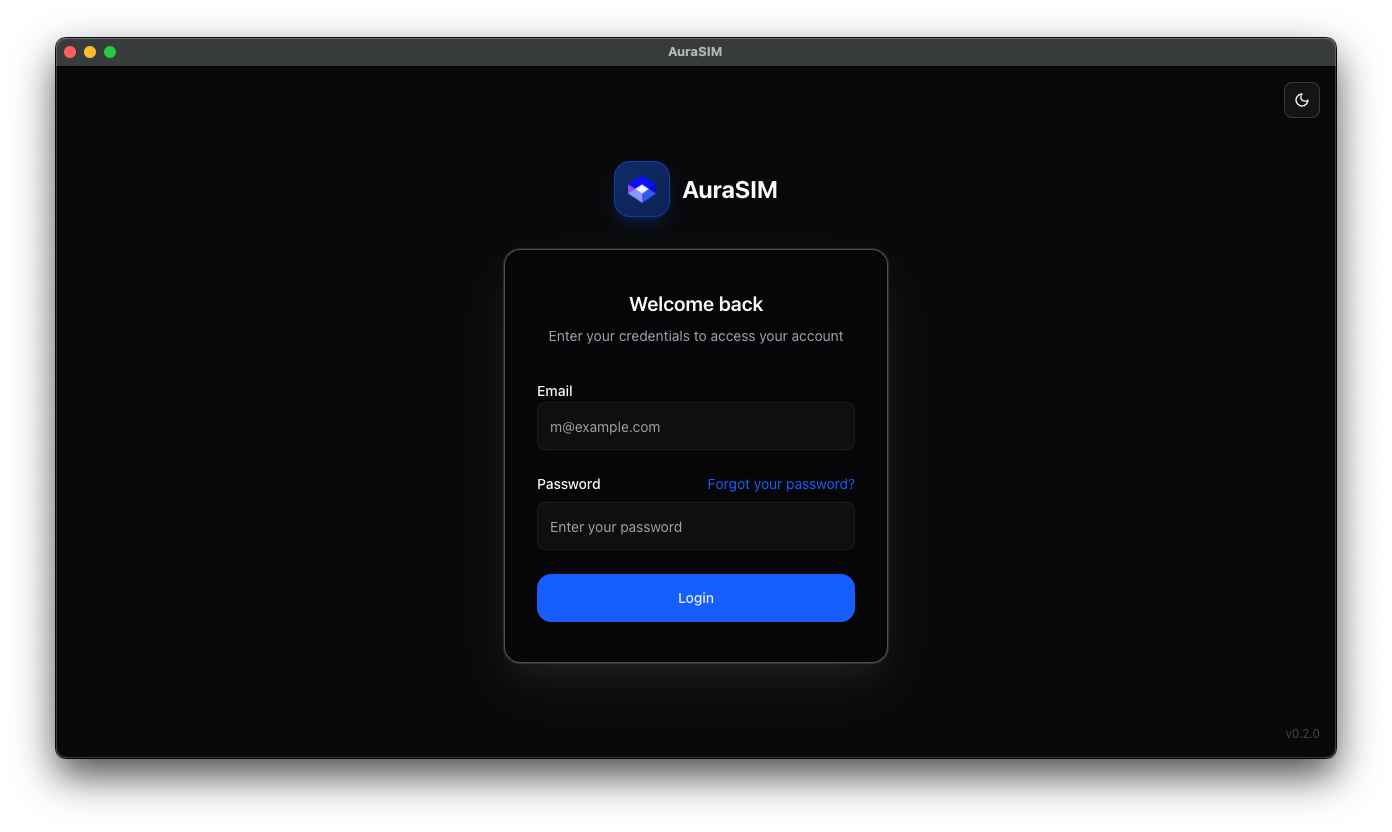
- Enter the credentials provided by your administrator
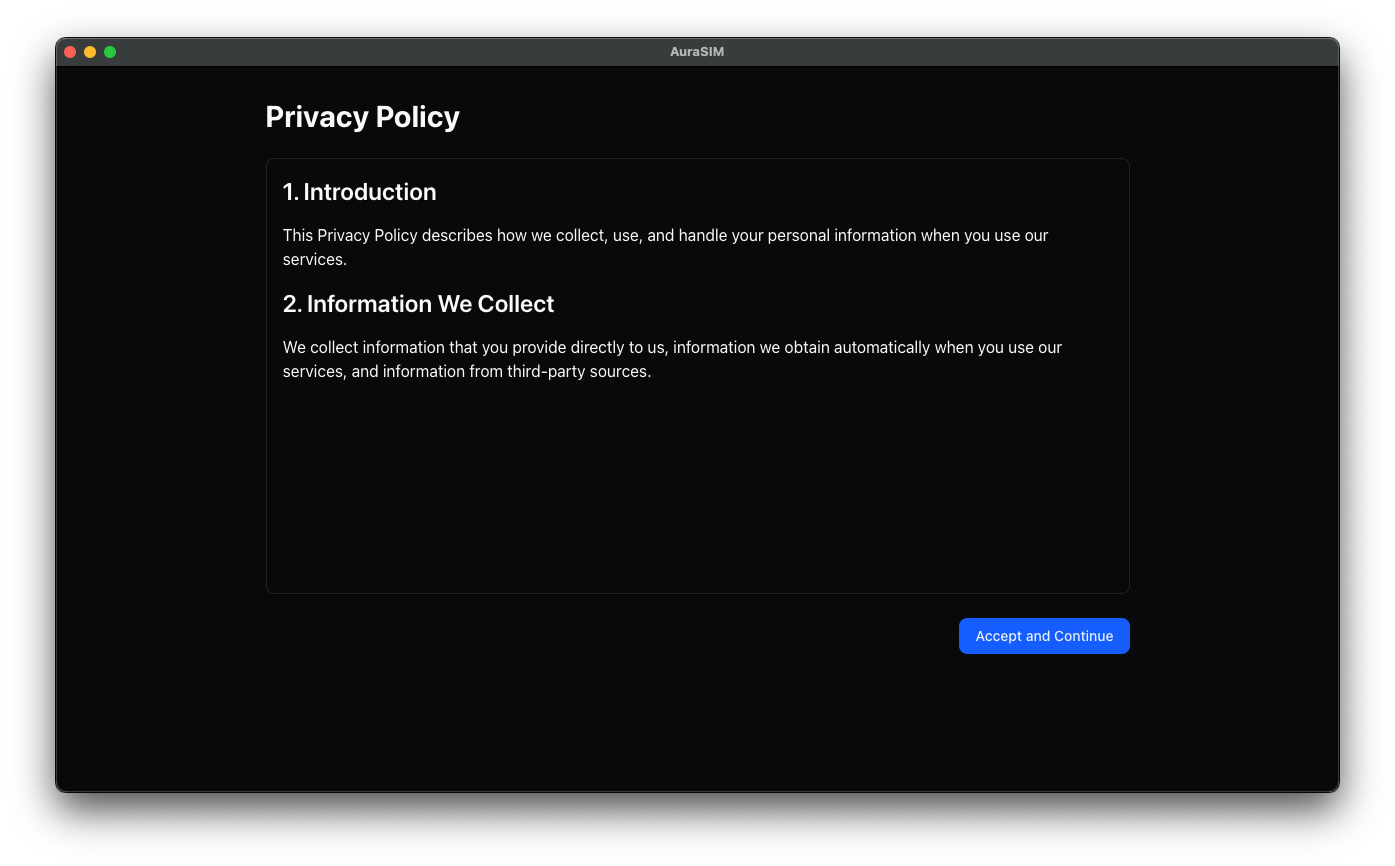
- Accept the Terms and Privacy Policy when prompted
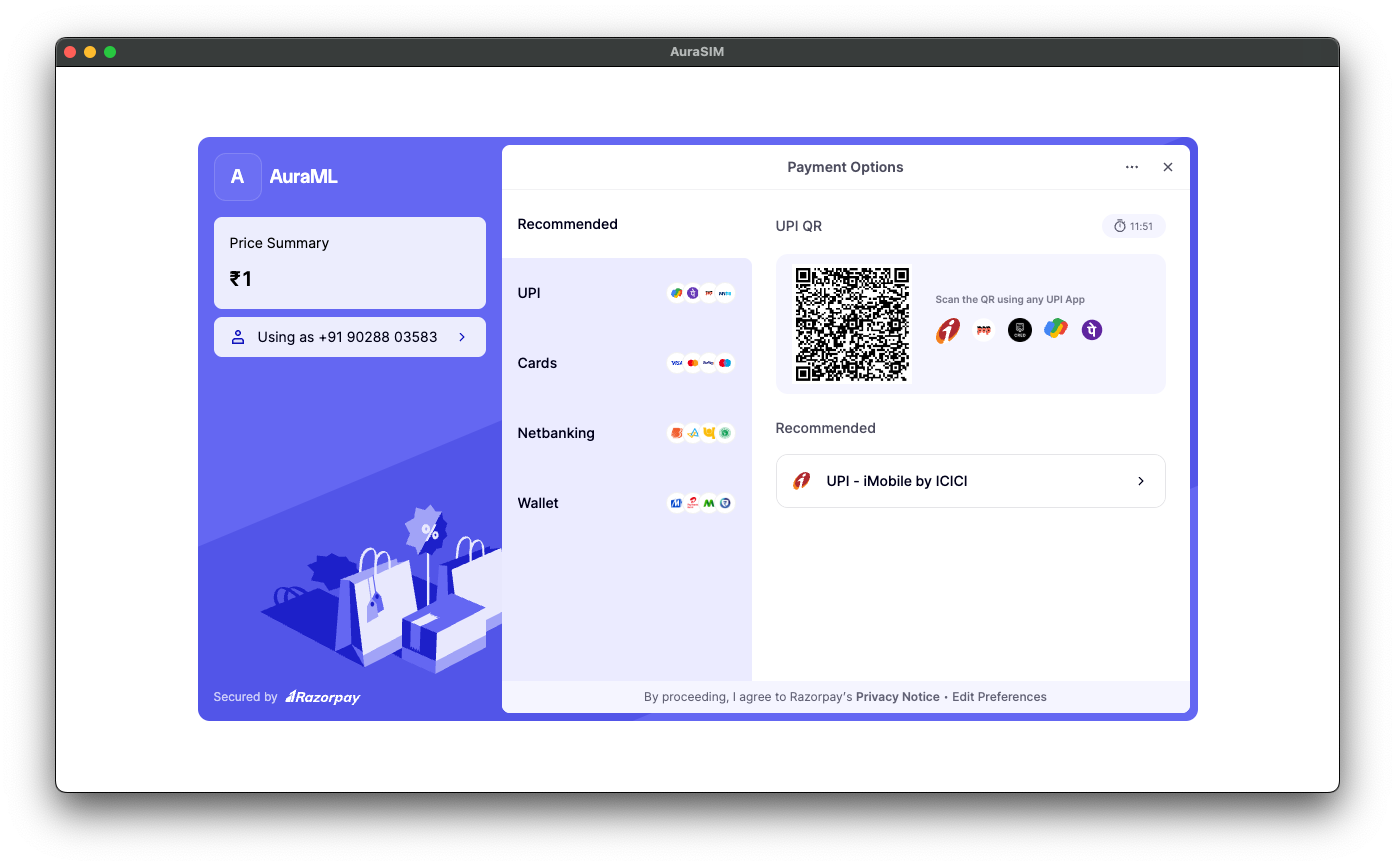
Step 3: Account Activation
- If payment activation is required, you'll be redirected automatically
- Select your plan or proceed with trial options
- Complete billing setup if applicable
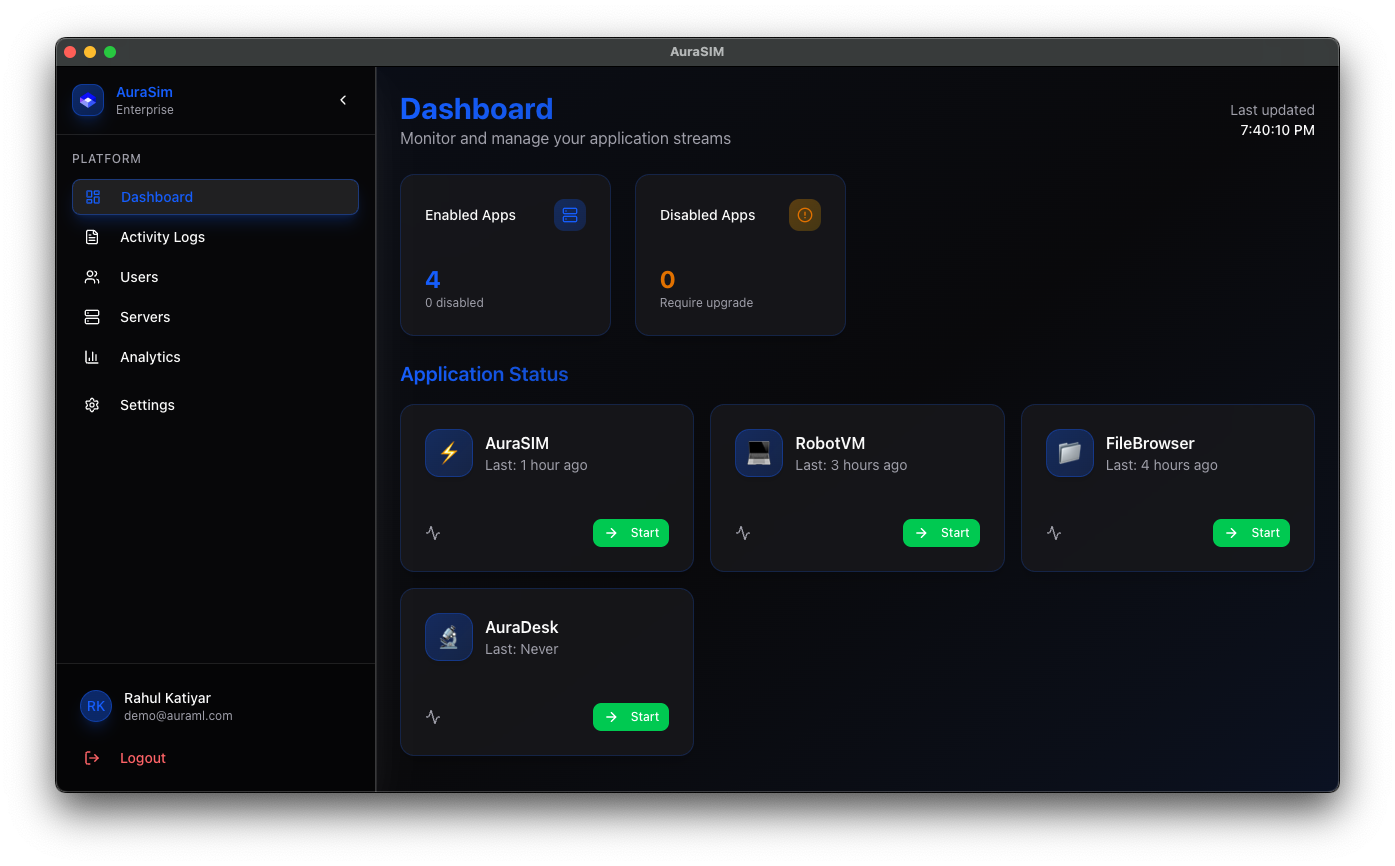
Step 4: Access the Dashboard
After successful login and activation, you'll see the main dashboard with application tiles for:
- AuraSim (Isaac Sim streaming)
- RobotVM (Ubuntu development environment)
- FileBrowser (File management)
Application Usage
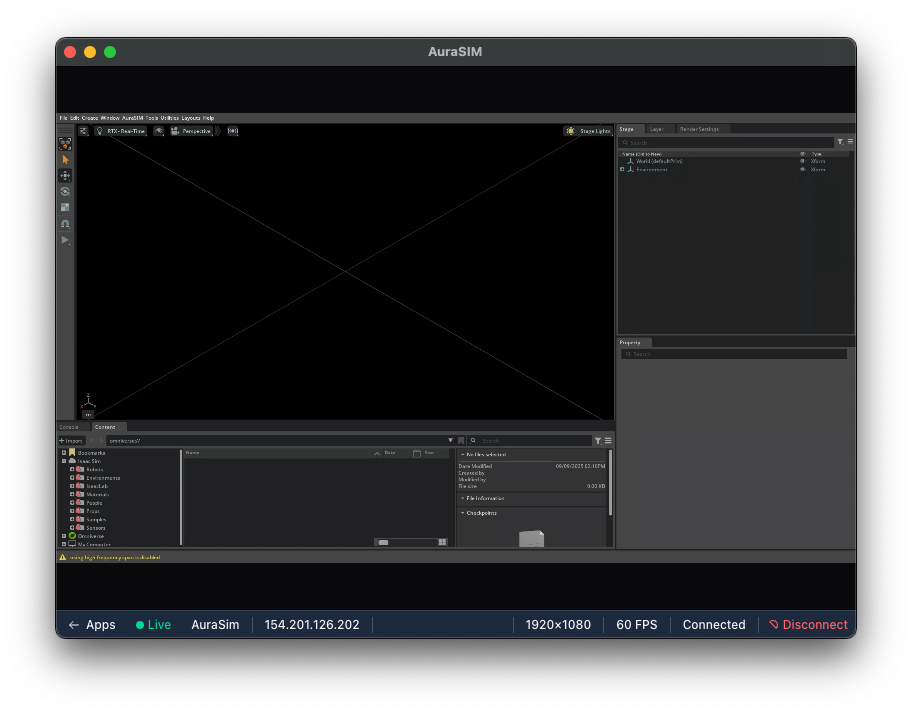
Using AuraSim (Isaac Sim)
- Launch: Click the AuraSim tile from the dashboard
- Connect: Wait for session allocation, then click "Connect to Stream"
- Simulate: Use Isaac Sim as if it were running locally
- Files: Project directory is persisted in
/workspace/projects
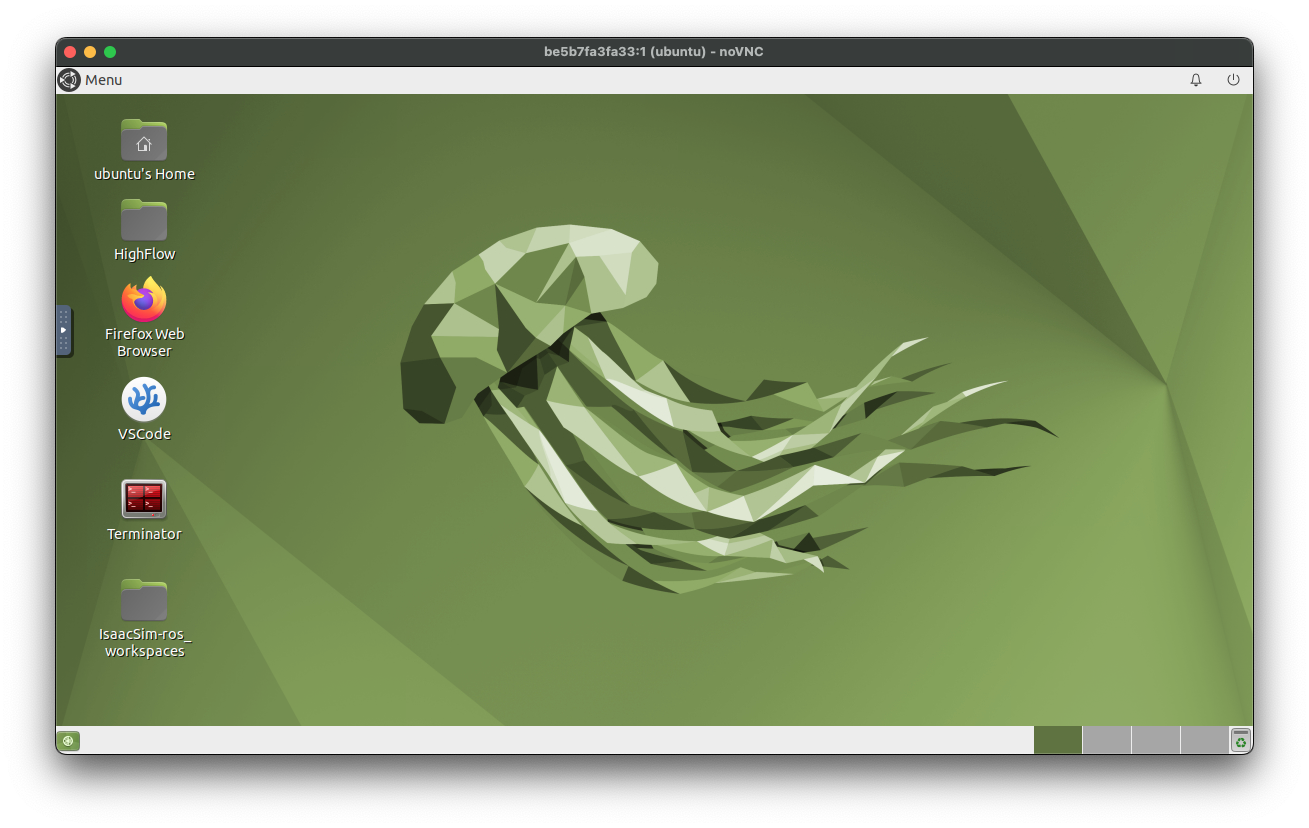
Using RobotVM
- Launch: Click the RobotVM tile from the dashboard
- Connect: Enter the provided access password
- Develop: Full Ubuntu desktop with VS Code, ROS2, and development tools
- Storage: Files in
/persistentStorageremain available between sessions
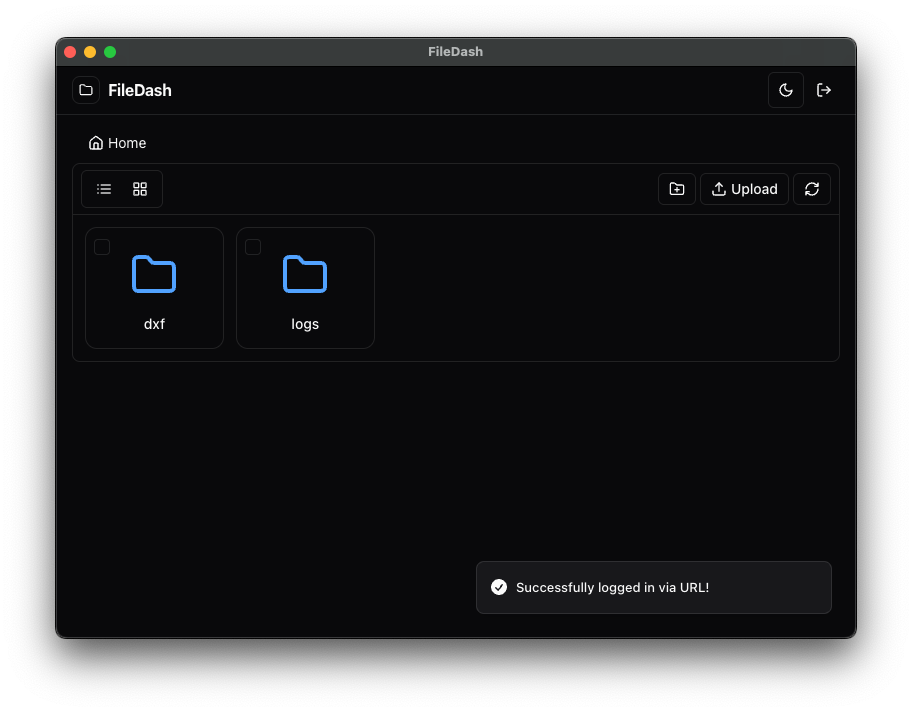
File Management
- Access: Click the FileBrowser tile
- Upload: Drag and drop files or use the upload button
- Share: Files are accessible from both AuraSim and RobotVM
- Organize: Create folders and manage your simulation assets
Support & Resources
Community & Support
- Documentation: Comprehensive user guides and operations manual
- Support Email: support@auraml.com
- Priority Support: Dedicated Slack/Portal for enterprise customers
- Critical Issues: 1-hour acknowledgment for P1 issues
Support Response Times
| Type | Contact Method | Response Time |
|---|---|---|
| General | support@auraml.com | 1 business day |
| Priority | Dedicated Portal | 4 business hours |
| Critical (P1) | Hotline + Email | 1 hour acknowledgment |
New to AuraSim? Start by launching RobotVM to familiarize yourself with the development environment, then try a simple Isaac Sim session!
AuraSim requires a stable internet connection with at least 50 Mbps download speed and low latency (<80ms) for optimal streaming performance.
What's Next?
- Download AuraSim Client - Get the desktop application
- Check System Requirements - Ensure compatibility
- Launch Your First Session - Start with Isaac Sim or RobotVM
- Explore the Platform - Learn advanced features
Typical Workflow
- Setup: Download and install the desktop client
- Login: Access your account and activate if needed
- Choose App: Select AuraSim, RobotVM, or FileBrowser
- Work: Develop, simulate, and manage files in the cloud
- Collaborate: Share projects and work with your team
- Scale: Leverage cloud computing for demanding workloads